


OS updates according to DTAP in OCI using OS Management Hub
By Marije Politiek • 10 juni 2026

By Mark Kempers, Infrasctructure Specialist at MCX
Today I will discuss OS updates in OCI in a DTAP model. When running a mission critical application in OCI most of the times you have a multiple environments running (Development, Test, Acceptance and Production). One of the main things is that you want to keep you operating systems also the same over your environments. That also means that making sure your OS packages are the same version on all of your environments is key.
Today I will explain how to set this up and what you need. The case that is used is four stages and in every stage a Oracle Linux 9 machine. Knowing your OS version is important for configuration. Using Oracle Linux gives you all the benefits of this service.
OS Management Hub
OS Management Hub is the service within OCI which is going to take care of the OS updates. The OS Management Hub let you manage you OS from the OCI console and monitor you IaaS instance. Let’s start with the configuration of the OS Management Hub.
Make sure all the permissions are setup for the OS Management Hub as described in the documentation.
Software sources
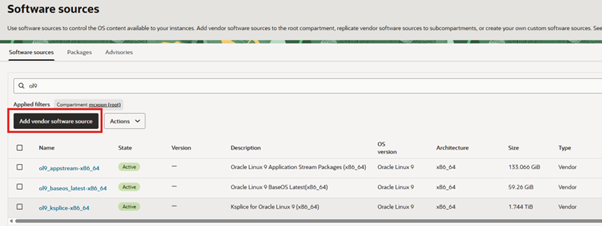
To use vendor software sources go to Observability & Management – OS Management Hub – Software Sources.
Make sure you are in the root compartment! The you can add software sources from Oracle using the button Add vendor software source. I added some vendor sources as reference.

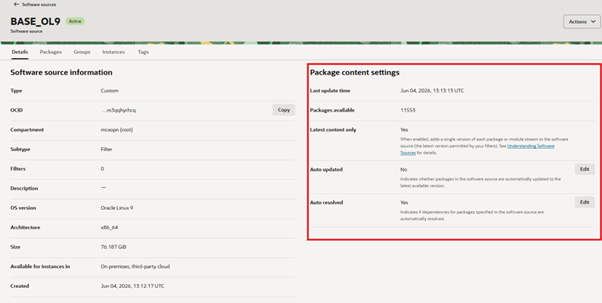
Now we have the vendor software sources we need to create a custom software source. This is the most important part, make sure you select the correct settings. Click on Actions – Create custom software source. Make sure Versioning is disabled and auto update is also disabled. When creation is ready, it should look something like this.

Now we created the custom software source. We make sure all packages from the moment that it is created are in there, and that they are not updated. This one should be the baseline of all our stages.
Group for stages
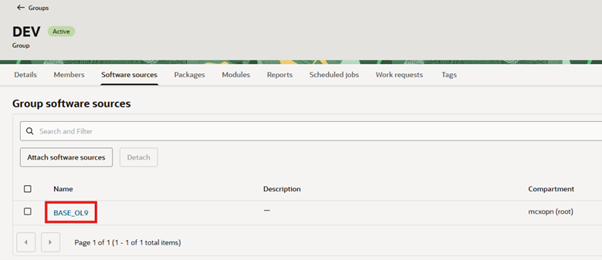
To be able to install packages for each environment, we need to create groups. For each stage we need to create a group. So development, test, acceptance and production need a group. In the console go to Observability & Management – OS Management Hub – Groups and create the stages you need as shown in my screenshot.
Pay attention! You need to create a group for every OS version! Is this case, we will just configure it for Oracle Linux 9. When creating a group it is asking to attach a software source. Make sure you select the one you just created. Create a group with the same software source for each environment.

Registration profile
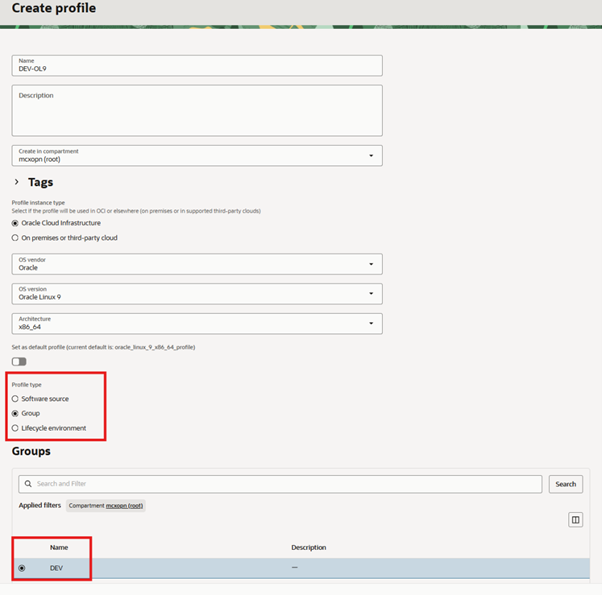
Now we will create a registration profile for the machines. We need to create a registration profile for every stage. During configuration we will make the
configuration in a way that every machine that has that registration profile will be added to that matching group and as a result will receive the custom software source. Go to Observability & Management – OS Management Hub – Profiles and create a profile. Her is an example for DEV.

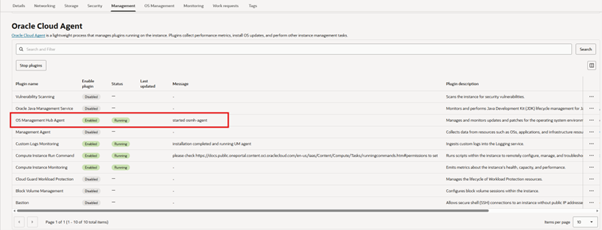
Now all the registration profile are set we can start spinning up the first instance. After spinning up the instance (which need to be Oracle Linux 9 of course) we need to enable the OS Management Hub. Go to the details of the machine, then to Management and enable the plugin. It shoudl ask you to attach a profile. Choose the one of the stage that applies. After sometime you should see that the agent is started.

Instance
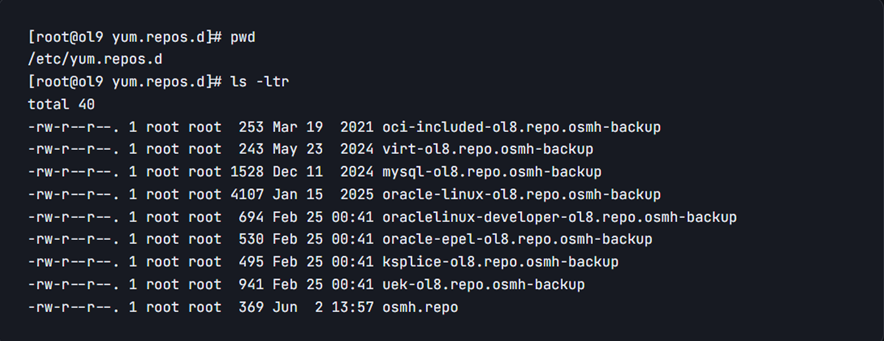
When the instance if fully ready and the OS Management Hub is running we can verify if everything is setup correctly. The thing we will check if it received the correct repository. You can check that in the folder /etc/yum.repos.d/. It should look something like this.

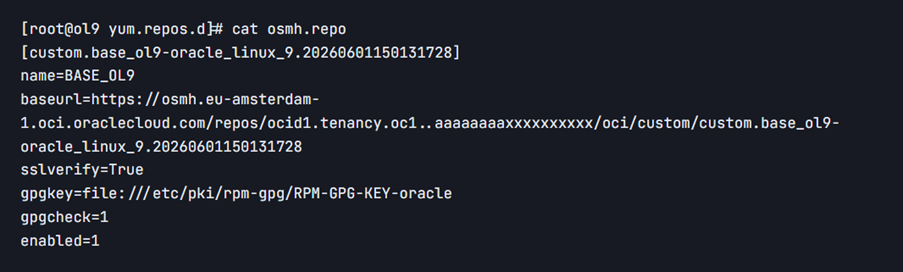
You can see that all the default repo files have been renamed to *.backup and that there is a new file called osmh.repo. That file should contain the repo you created in the beginning. It should look something like this.

When doing a dnf update it should update to all the latest versions in that specific repository. When every package is update you should see that there is no update available in the future anymore as long as you don’t update that repository.
What is next?
So when you decide to update your instance the easiest and cleanest way to do it is to create a new custom software source and attach it to the group of the stage you want to apply it to. Your machine will get updated with that repository and you can run your update. Make sure you detach the old one before running the OS update command!
Do you have questions regarding this setup? If so, please get in touch with me.
Until next time!
We like to do things a little differently
Our strength lies in people who truly understand Oracle and are always curious about what's really going on. Discover how we work and who we are.
Stay up to date
Don't miss the most important MCX news, developments in cloud, Oracle and security, and our perspective on technology and collaboration? Sign up for our newsletter.
Newletter ENG
Bedankt voor uw inschrijving. Je ontvangt binnenkort onze eerste update.
Inschrijven mislukt. Probeer het opnieuw.
Most recent posts